> ## Documentation Index
> Fetch the complete documentation index at: https://docs.nudget.app/llms.txt
> Use this file to discover all available pages before exploring further.
# Saved
> Save any page you're reading — AI summarizes it and delivers the key points in your next briefing
Reading something worth coming back to? Save it with one tap. AI reads the full page, extracts the key points, and includes them in your next daily briefing — so you don't have to.
## How It Works
Use the Chrome Extension, iOS Shortcut, or MCP to save any URL.
Nudget reads the full content and generates a concise summary.
The summary appears in your next daily briefing alongside your subscriptions.
## Ways to Save
Click **Save for Summary** on any page you're reading.
Tap **Share** in any app → **Save to Nudget**. One tap from anywhere on your phone.
Save URLs directly from AI tools like Claude or Cursor.
### Chrome Extension
The fastest way to save from your desktop. Open any page, click the Nudget icon, and hit **Save for Summary**.
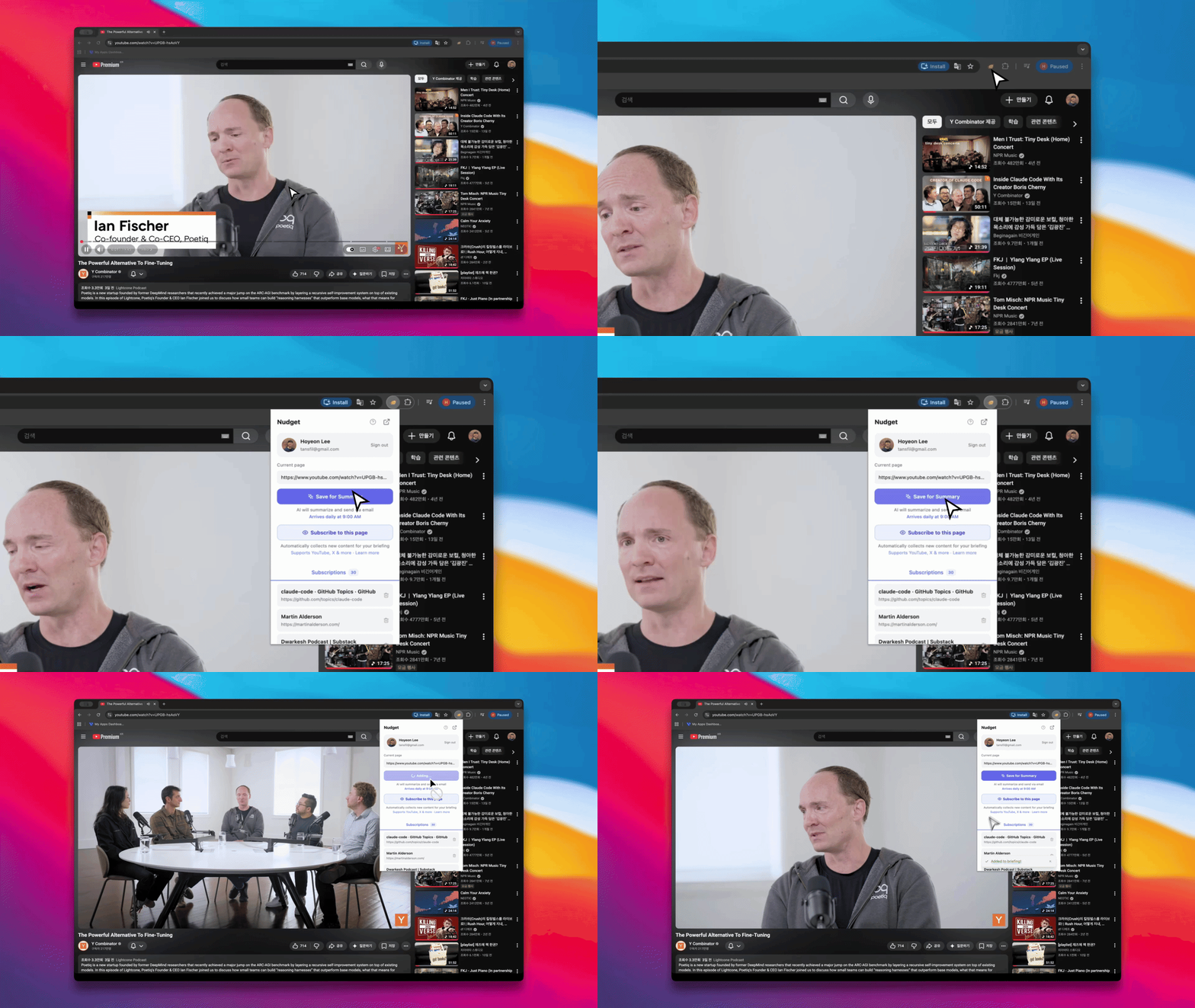 Install and set up the extension
### iOS Shortcut
Save articles from your phone with one tap. Go to **Settings** and tap **Set up iOS Shortcut** to get started.
Install and set up the extension
### iOS Shortcut
Save articles from your phone with one tap. Go to **Settings** and tap **Set up iOS Shortcut** to get started.
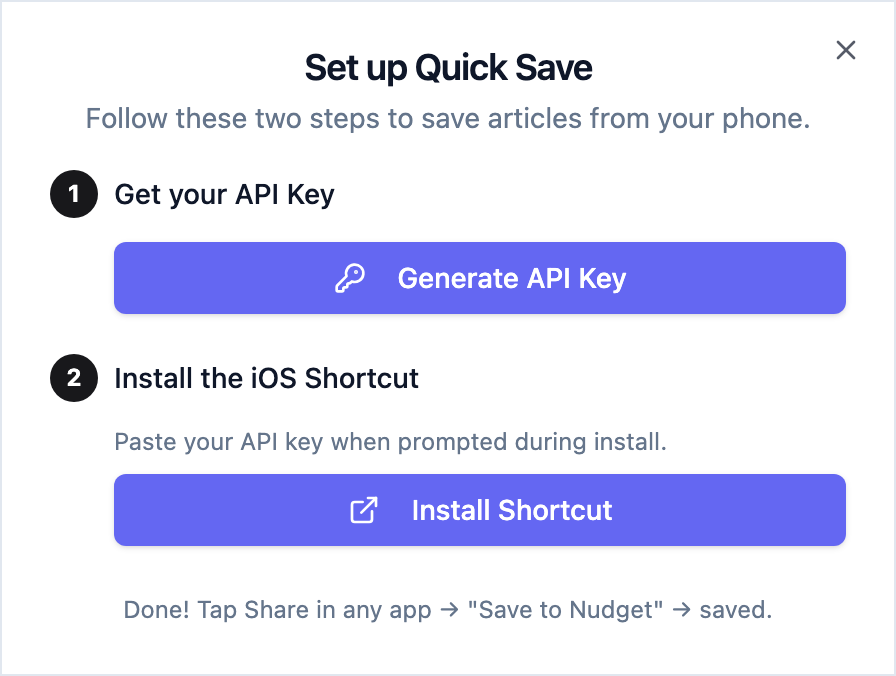 Tap **Generate API Key** and copy it.
Tap **Install Shortcut** and paste your API key when prompted.
In any app, tap **Share** → **Save to Nudget**. Done.
Create your API key
### MCP
If you use AI tools like Claude or Cursor, you can save URLs through the Nudget MCP server.
Connect your AI tools
## Viewing Saved Items
All saved items appear in the **Saved** tab on your dashboard. You can filter by status:
* **Queued** — waiting to be processed by AI
* **Processed** — summary ready, included in your next briefing
## Next Steps
Save pages from your browser
Automatically collect content from your favorite sources
Tap **Generate API Key** and copy it.
Tap **Install Shortcut** and paste your API key when prompted.
In any app, tap **Share** → **Save to Nudget**. Done.
Create your API key
### MCP
If you use AI tools like Claude or Cursor, you can save URLs through the Nudget MCP server.
Connect your AI tools
## Viewing Saved Items
All saved items appear in the **Saved** tab on your dashboard. You can filter by status:
* **Queued** — waiting to be processed by AI
* **Processed** — summary ready, included in your next briefing
## Next Steps
Save pages from your browser
Automatically collect content from your favorite sources