> ## Documentation Index
> Fetch the complete documentation index at: https://docs.nudget.app/llms.txt
> Use this file to discover all available pages before exploring further.
# Chrome Extension
> Subscribe to any website and save pages for your digest — without leaving your browser
Browse as usual — subscribe to any site in one click, or save a page for your next AI digest, without ever leaving your browser.
## Use Cases
Click **Subscribe to this page** — Nudget auto-detects the platform and starts watching for new uploads.
Click **Save for Summary** — AI summarizes it and includes it in tonight's briefing.
Click **Subscribe to this page** on any website — Nudget lets you subscribe to pages that don't have RSS or social feeds.
Select a specific area to monitor — get notified when that section updates.
## Getting Started
Install **Nudget** from the [Chrome Web Store](https://chromewebstore.google.com/detail/nudget/damflmllpmfhmagfgnebfemeijlfpgnc).
Click the Nudget icon in your browser toolbar and sign in with your Google account.
Navigate to any page and use **Save for Summary** or **Subscribe to this page**.
## Save for Summary
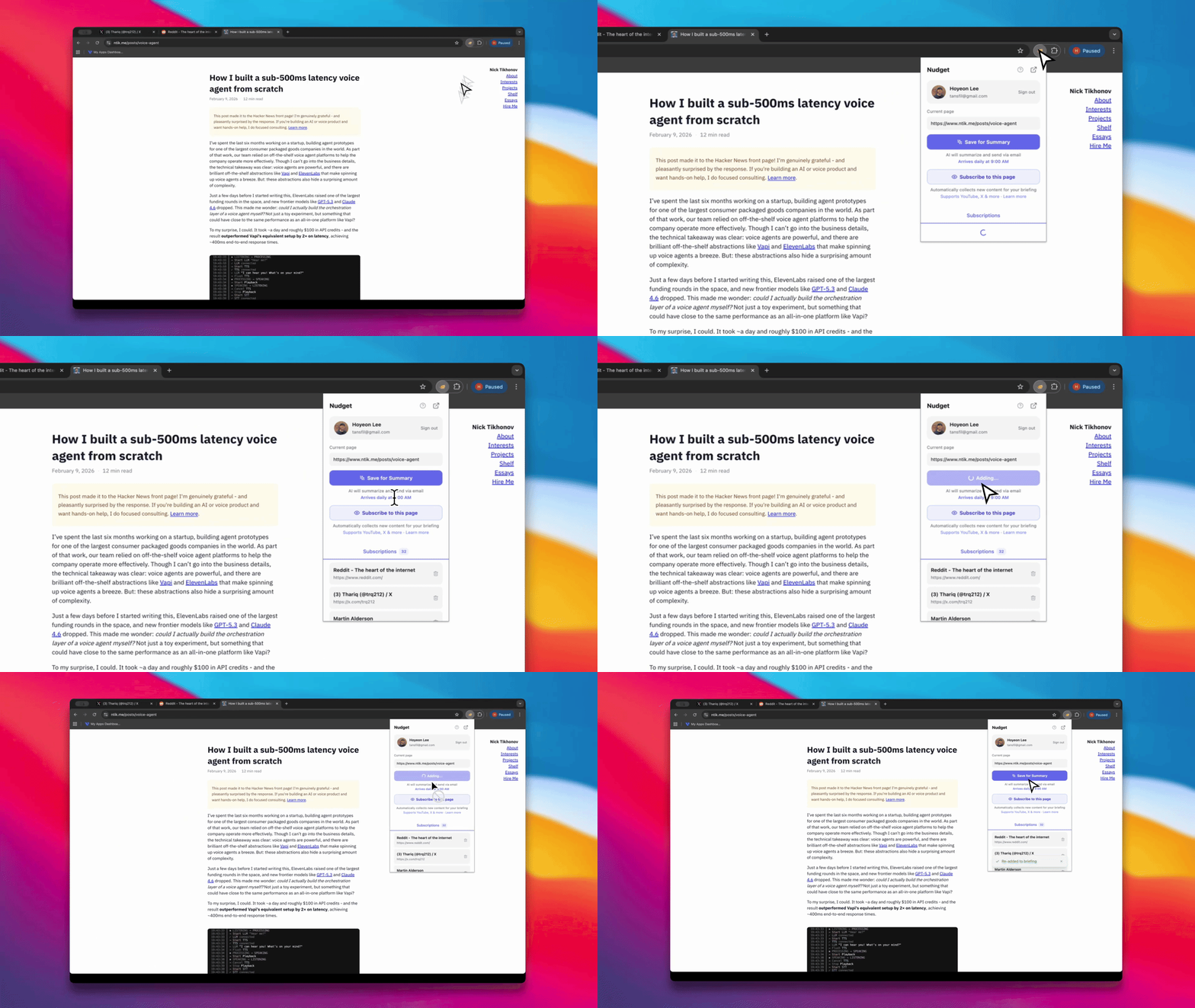
Click **Save for Summary** to save the current page. AI summarizes and includes it in your next daily briefing. You can review saved items anytime on the web dashboard.
 ## Subscribe to this page
Click **Subscribe to this page** to subscribe to the current page. Nudget auto-detects the platform and applies the best subscription type.
**Instantly recognized platforms:**
| Platform | What's tracked |
| ----------- | ------------------------------------- |
| YouTube | New videos from a channel or playlist |
| Threads | New posts from a profile |
| X (Twitter) | New tweets from a user |
| Medium | New articles from an author |
| LinkedIn | New posts from a profile |
| Substack | New newsletter issues |
| Podcast | New episodes from a podcast feed |
### Any other website
For sites not listed above — company blogs, job boards, documentation, newsletters — you choose how to monitor:
Detects when new items appear on a listing page.
Monitors a specific area and notifies you when the content changes.
### How New Post Detection works
## Subscribe to this page
Click **Subscribe to this page** to subscribe to the current page. Nudget auto-detects the platform and applies the best subscription type.
**Instantly recognized platforms:**
| Platform | What's tracked |
| ----------- | ------------------------------------- |
| YouTube | New videos from a channel or playlist |
| Threads | New posts from a profile |
| X (Twitter) | New tweets from a user |
| Medium | New articles from an author |
| LinkedIn | New posts from a profile |
| Substack | New newsletter issues |
| Podcast | New episodes from a podcast feed |
### Any other website
For sites not listed above — company blogs, job boards, documentation, newsletters — you choose how to monitor:
Detects when new items appear on a listing page.
Monitors a specific area and notifies you when the content changes.
### How New Post Detection works
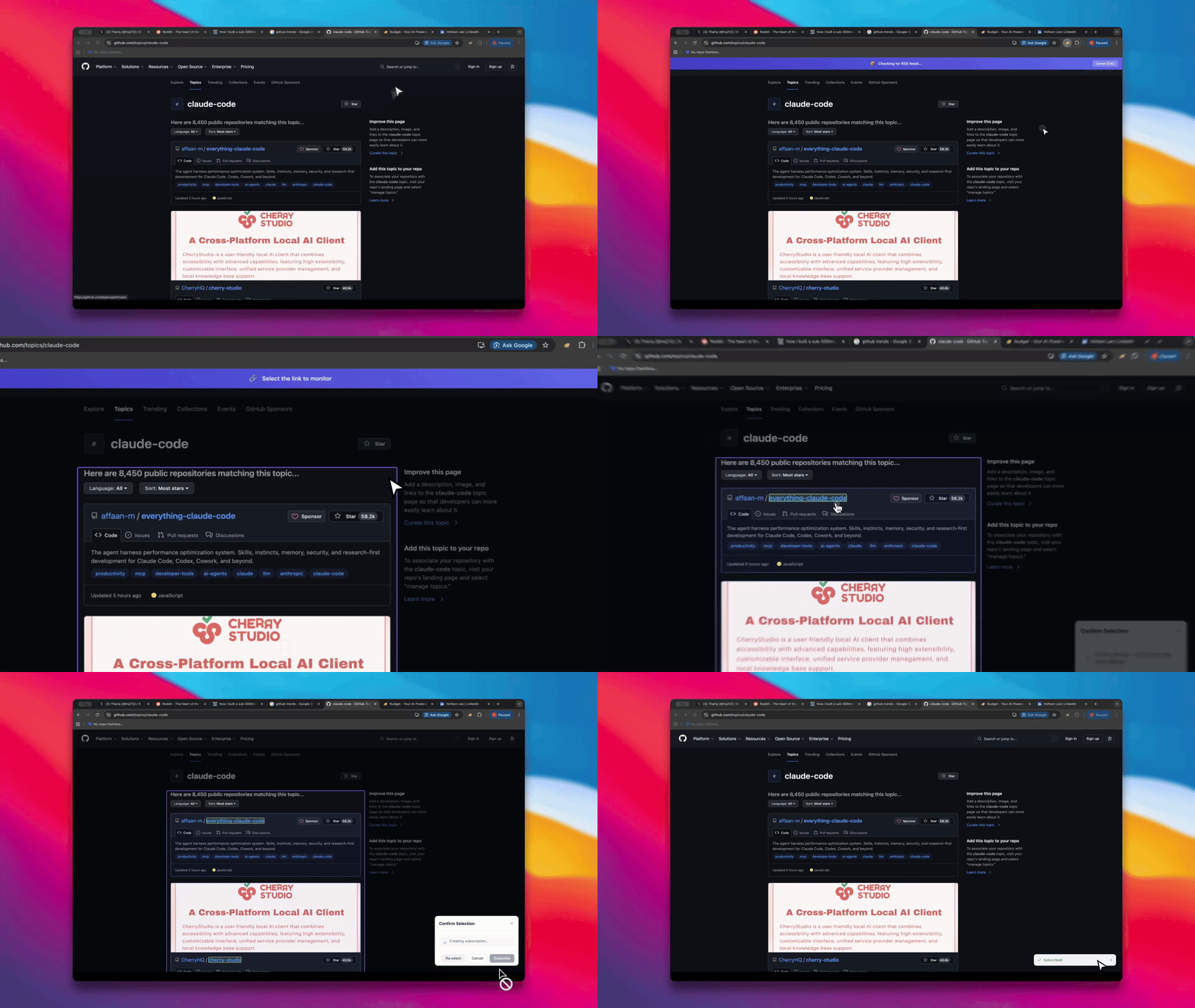 Click the area on the page that contains the list of posts. AI automatically detects the list pattern.
Confirm that the detected individual links are correct.
Review the detected items and click **Subscribe** to complete.
If the page has an RSS feed, Nudget will detect it and offer to subscribe via RSS first — often the most reliable option.
### How Content Change Detection works
Select the area you want to monitor, then click **Subscribe**. Nudget periodically checks that section and notifies you when the content changes.
## Next Steps
Learn about all supported subscription types
Organize your digest into topic-based sections
Choose how detailed your briefings are
Get your digest delivered to Slack
Click the area on the page that contains the list of posts. AI automatically detects the list pattern.
Confirm that the detected individual links are correct.
Review the detected items and click **Subscribe** to complete.
If the page has an RSS feed, Nudget will detect it and offer to subscribe via RSS first — often the most reliable option.
### How Content Change Detection works
Select the area you want to monitor, then click **Subscribe**. Nudget periodically checks that section and notifies you when the content changes.
## Next Steps
Learn about all supported subscription types
Organize your digest into topic-based sections
Choose how detailed your briefings are
Get your digest delivered to Slack