> ## Documentation Index
> Fetch the complete documentation index at: https://docs.nudget.app/llms.txt
> Use this file to discover all available pages before exploring further.
# Quickstart
> Get started with Nudget in minutes
## 1. Sign Up
Go to [Nudget](https://nudget.app) and sign in with your Google account.
## 2. Add a Subscription
In the **Subscriptions** tab on your dashboard, click **Add Subscription** and enter the URL you want to monitor.
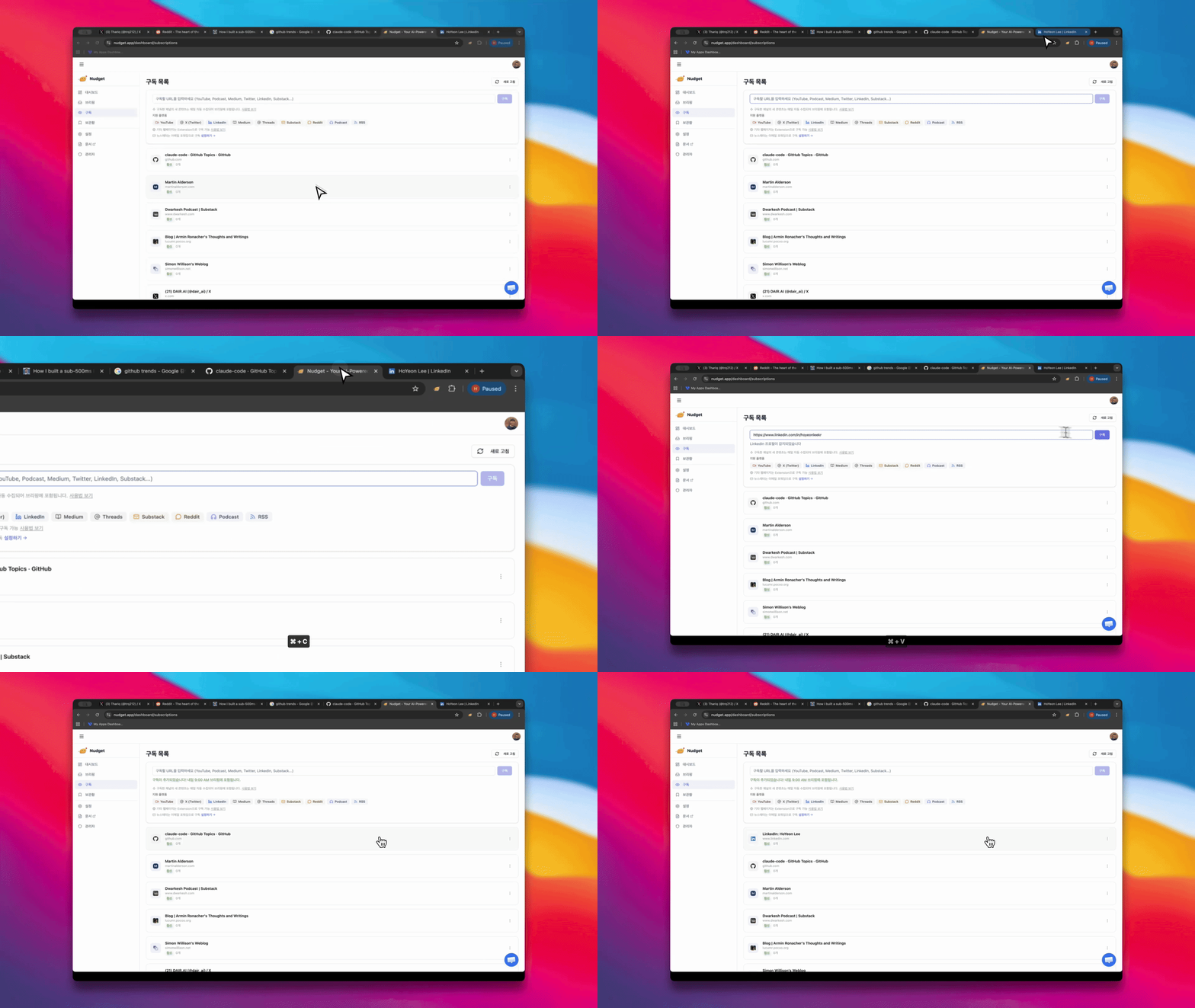 The URL is automatically detected as the right content type:
| Source | Example URL |
| ----------- | ------------------------------------------------------- |
| YouTube | `youtube.com/@channel`, `youtube.com/playlist?list=...` |
| Reddit | `reddit.com/r/subreddit` |
| Threads | `threads.net/@username` |
| X (Twitter) | `x.com/username` |
| Medium | `medium.com/@author` |
| LinkedIn | `linkedin.com/in/username` |
| Substack | `example.substack.com` |
| Podcast | Podcast RSS feed URL |
| RSS | Enter a feed URL directly |
For regular web pages, you can set up **new post detection** or **content change detection** using the Chrome Extension.
Already receiving newsletters via email? Generate your personal forwarding address in **Settings** and forward them to Nudget — they'll be summarized in your briefing too.
## 3. Set Your Interests
Add lenses on the **Settings** page. Lenses organize your briefing into topic-based sections.
Examples:
* `AI` — Artificial intelligence content
* `Developer Tools` (detail: "focused on open source") — Fine-tuned filtering
## 4. Configure Your Briefing
Customize your briefing delivery in Settings.
| Setting | Description |
| ----------------------- | -------------------------------------------------------------- |
| **Delivery time** | When to receive your briefing (15-min intervals) |
| **Briefing mode** | verbose (detailed) / compact (highlights) / links (links only) |
| **Email notifications** | Toggle email briefing on/off |
| **Slack notifications** | Toggle Slack briefing on/off |
| **Display name** | Name used in your briefing title |
## 5. Install the Chrome Extension (Optional)
Install the Nudget Extension from the Chrome Web Store to save content and add subscriptions directly from your browser.
Learn more about the extension
## 6. Connect MCP Server (Optional)
To use Nudget directly from AI tools like Claude or Cursor, connect the MCP server.
Connect your AI tools
The URL is automatically detected as the right content type:
| Source | Example URL |
| ----------- | ------------------------------------------------------- |
| YouTube | `youtube.com/@channel`, `youtube.com/playlist?list=...` |
| Reddit | `reddit.com/r/subreddit` |
| Threads | `threads.net/@username` |
| X (Twitter) | `x.com/username` |
| Medium | `medium.com/@author` |
| LinkedIn | `linkedin.com/in/username` |
| Substack | `example.substack.com` |
| Podcast | Podcast RSS feed URL |
| RSS | Enter a feed URL directly |
For regular web pages, you can set up **new post detection** or **content change detection** using the Chrome Extension.
Already receiving newsletters via email? Generate your personal forwarding address in **Settings** and forward them to Nudget — they'll be summarized in your briefing too.
## 3. Set Your Interests
Add lenses on the **Settings** page. Lenses organize your briefing into topic-based sections.
Examples:
* `AI` — Artificial intelligence content
* `Developer Tools` (detail: "focused on open source") — Fine-tuned filtering
## 4. Configure Your Briefing
Customize your briefing delivery in Settings.
| Setting | Description |
| ----------------------- | -------------------------------------------------------------- |
| **Delivery time** | When to receive your briefing (15-min intervals) |
| **Briefing mode** | verbose (detailed) / compact (highlights) / links (links only) |
| **Email notifications** | Toggle email briefing on/off |
| **Slack notifications** | Toggle Slack briefing on/off |
| **Display name** | Name used in your briefing title |
## 5. Install the Chrome Extension (Optional)
Install the Nudget Extension from the Chrome Web Store to save content and add subscriptions directly from your browser.
Learn more about the extension
## 6. Connect MCP Server (Optional)
To use Nudget directly from AI tools like Claude or Cursor, connect the MCP server.
Connect your AI tools